How to use
Create Moneybird invoices from items on your boards, and see on the board when they are paid.
Before you start
- A Moneybird account with an administration. The app works with one administration per monday.com account.
- An account admin in monday.com to connect Moneybird and choose the invoice defaults.
-
A board with:
- a Status column with a label you use for billing, for example “Invoice”, and one for “Paid”;
- a Numbers column with the amount excluding VAT, in euros;
- optional: a column with the customer name (otherwise the item name is used), an Email column, a text column with the invoice description, and a Link column for the link to the invoice.
1. Install and connect Moneybird
- Install Invoices for Moneybird from the monday.com App Marketplace.
- Open the app settings: Marketplace → Manage → Invoices for Moneybird → Settings.
- Click Connect Moneybird. A Moneybird tab opens: log in and allow access.
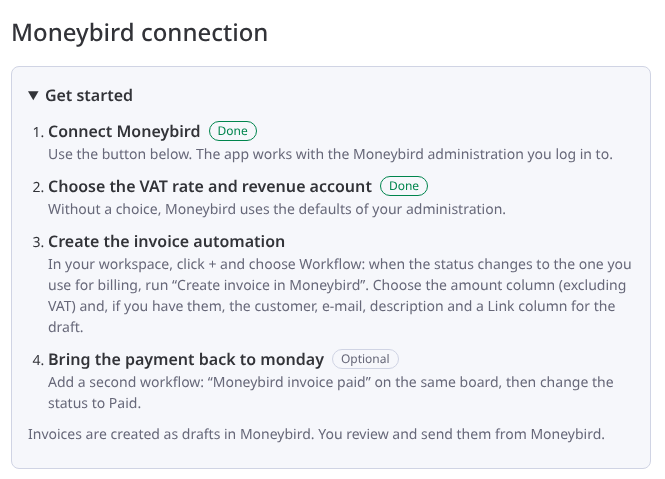
- Go back to the settings. When the connection is done, the page shows Connected to the administration with its name.
2. Choose the invoice defaults
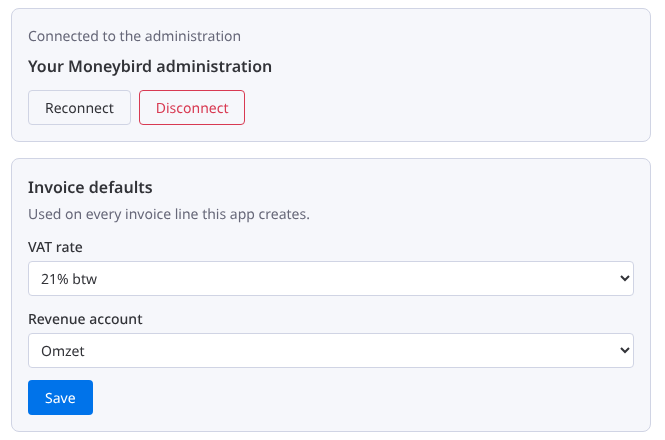
Under Invoice defaults, choose the VAT rate and the Revenue account for every invoice line the app creates, and click Save. The lists come from your Moneybird administration. Without a choice, Moneybird uses the defaults of your administration. Only account admins can change these settings.
3. Create the invoice automation
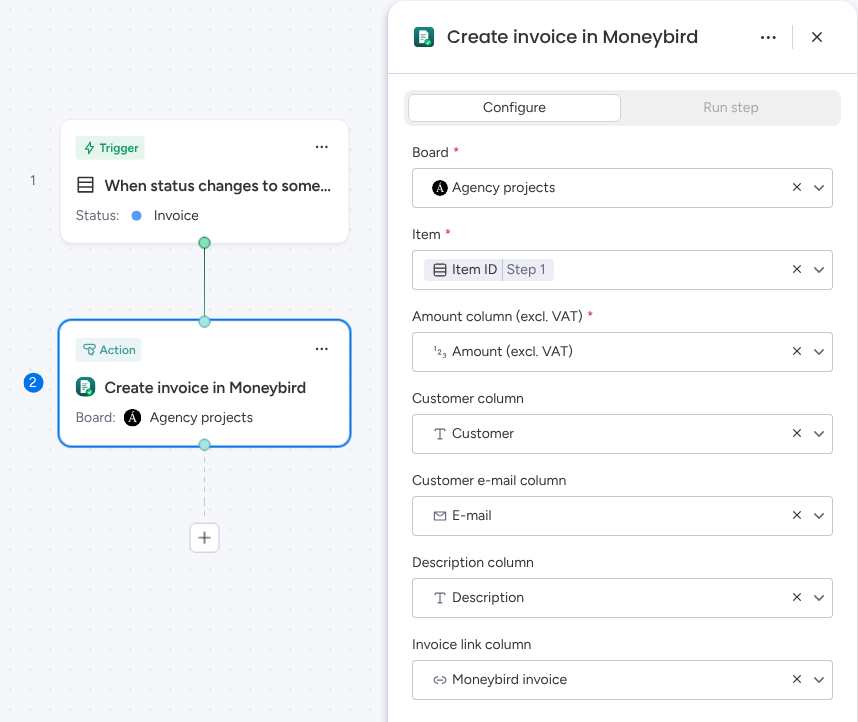
- In your workspace, click + and choose Workflow. (The board's Automate builder does not list this app's action.)
- Trigger: When status changes to something, with your billing label (for example “Invoice”).
- Action: Create invoice in Moneybird.
-
Fill in the fields:
Field What to choose Board, Item Your board and the item from the trigger. Amount column (excl. VAT) Required. The numbers column with the amount to invoice. Customer column Optional. Without it, the item name is the customer name. Customer e-mail column Optional, recommended. Used first to find the customer in Moneybird. Description column Optional. Without it, the item name is the invoice line description. Invoice link column Optional. A Link column where the app writes the link to the invoice. - Publish the workflow. Change the status of an item to test it.
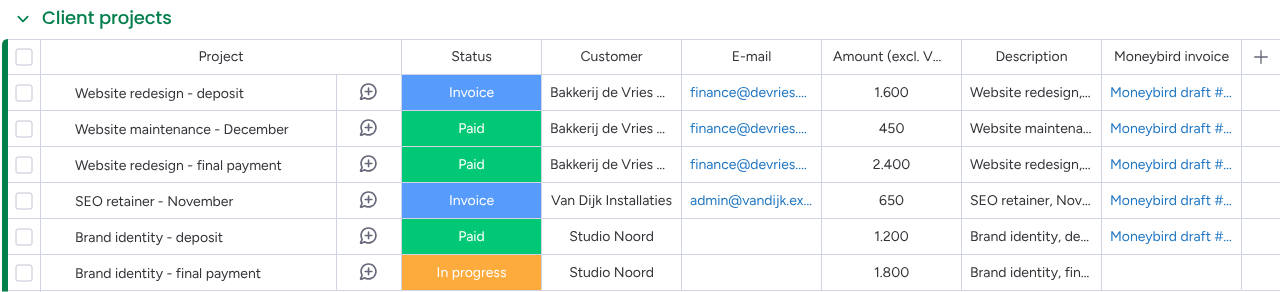
A few seconds later, a draft invoice appears in Moneybird and the item gets a link such as “Moneybird draft #12”.
4. Bring the payment back to monday.com (optional)
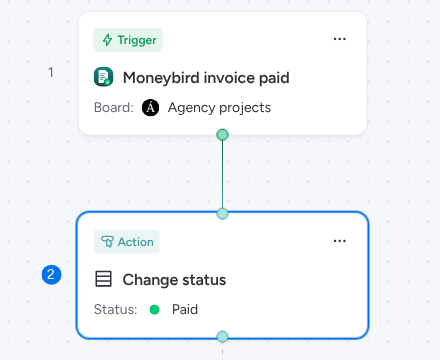
- Create a second workflow on the same board.
- Trigger: Moneybird invoice paid, with your board.
- Action: Change status to “Paid”, for the item from the trigger.
When an invoice the app created is paid in Moneybird, the item's status changes.
AI assistance
AI is on for new invoices. For each invoice it:
- writes the invoice line from the item name and description, in the language of your Moneybird administration;
- matches a customer written differently, such as “De Vries Bakkerij B.V.” for “Bakkerij de Vries”, to the existing Moneybird contact instead of creating a second one;
- adds a to-do “Check before sending (AI)” to the draft when something looks wrong, such as a vague description or an amount that does not fit the text.
If the AI is not available, the invoice is created as before, with the text of the description column. Up to 1,000 invoices per account per month use AI. An account admin can turn it off under AI assistance in the app settings. E-mail addresses are never sent to the AI model.
Good to know
- Invoices are created as drafts. You review and send them from Moneybird.
- One invoice line per item: the amount is excluding VAT, with the VAT rate and revenue account from the settings.
- The same item and amount column are invoiced only once per day, even if the status changes again.
- The customer is found in Moneybird by e-mail, then by name. If none exists, the app creates the contact. If Moneybird does not accept the e-mail address, the contact is created without it.
- Different amounts on one board, such as a deposit and a final payment, work with two amount columns and one workflow for each.
- A fixed monthly invoice works with the Every time period trigger and the item chosen in the Item field.
When an invoice is not created
Open the workflow's Run history. A failed run shows Invoice not created in Moneybird with the reason. The most common ones:
| Reason shown | What to do |
|---|---|
| The amount column of this item is empty | Fill in the amount and change the status again. |
| Moneybird is not connected | Connect Moneybird in the app settings (step 1). |
| Several Moneybird contacts have this e-mail address or customer name | Merge or rename the contacts in Moneybird, or add an e-mail column to the workflow. |
| Moneybird rejected the invoice | Check the VAT rate and revenue account in the settings and the customer in Moneybird. |
| Moneybird refused access | Click Reconnect in the app settings. |
| Subscription required | An account admin starts a trial or subscription in the monday.com App Marketplace. |
Disconnect or uninstall
Disconnect in the settings removes the connection, revokes the app's access in Moneybird and clears the defaults. Uninstalling the app does the same and deletes all the app's data for your account. Invoices and contacts stay in Moneybird.
Support
Questions or problems: support@boardinvoices.nl. Please include the board, the item and the time of the run.